Configuration
Location
Lite XL searches a list of paths to store user configuration, known as USERDIR.
The first path that is available will be used.
(path to lite-xl.exe)/user$LITE_USERDIR$XDG_CONFIG_HOME/lite-xl$HOME/.config/lite-xl
On Windows, $HOME will be replaced with $USERPROFILE.
User Module
Lite XL is mainly configured through the user module. The user module is a Lua script run by Lite XL during startup, before plugins are loaded. Thus, you can change configuration options, bind shortcut keys, load color schemes, change the fonts among other things.
To modify the user module, you can run the command core:open-user-module.
You can also modify the file USERDIR/init.lua directly.
Lite XL will reload the file on file change.
Project Module
The project module is an optional module which is loaded from the current project’s directory when Lite XL is started. Project modules can be useful for things like adding custom commands for project-specific build systems, or loading project-specific plugins.
The project module is loaded when the editor starts, after the user module is loaded but before plugins are loaded.
To modify project module, you can run the command core:open-project-module.
The command will create a project module if it does not exist.
Settings GUI
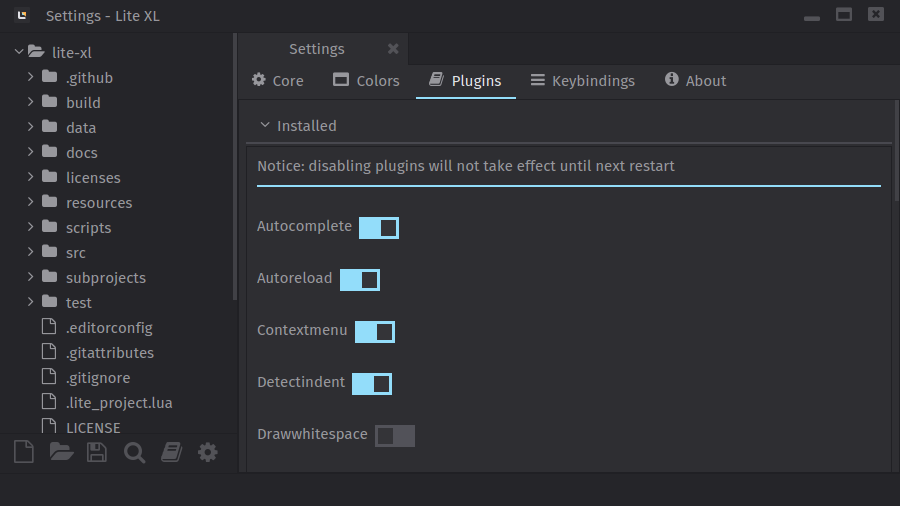
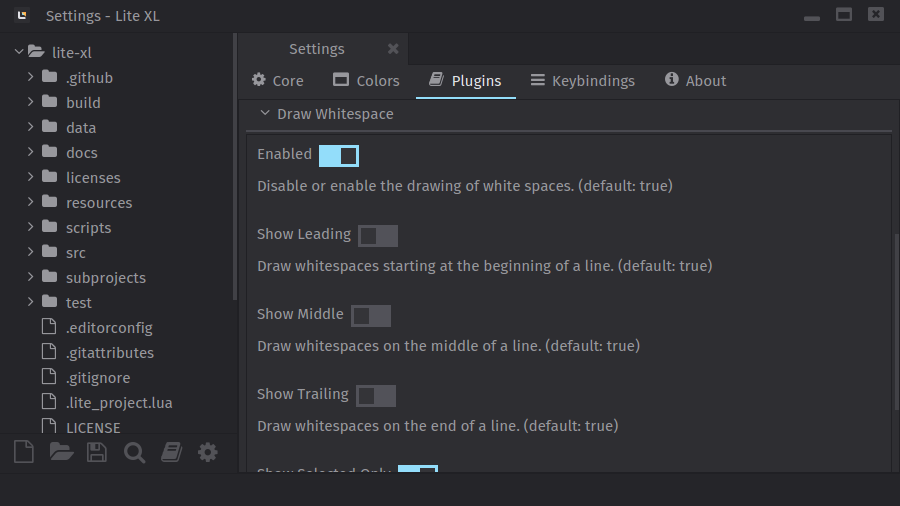
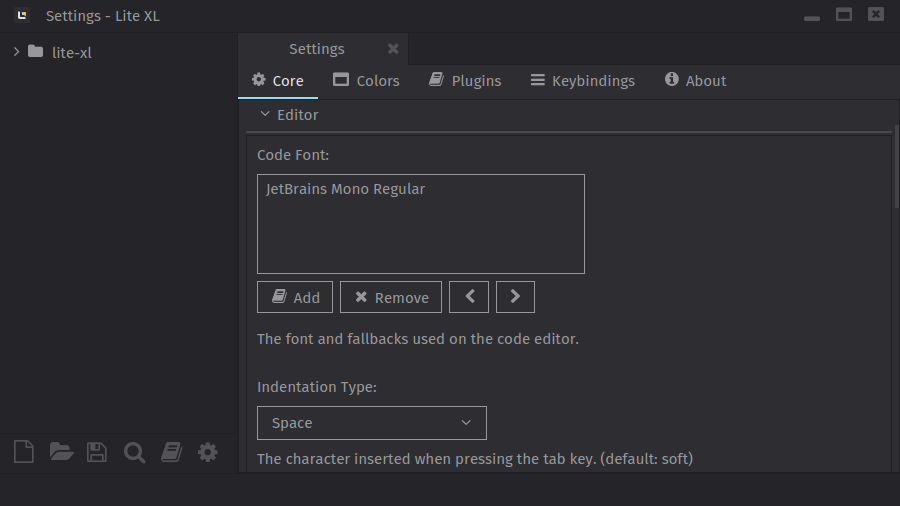
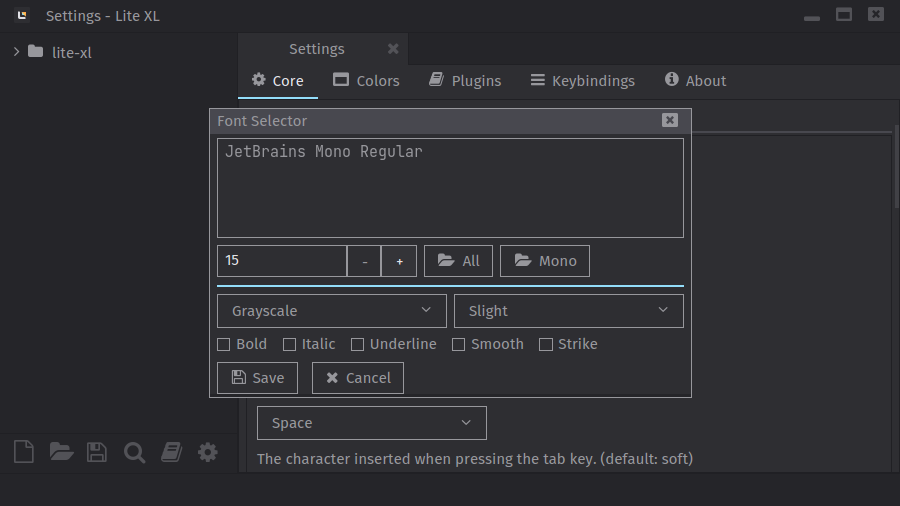
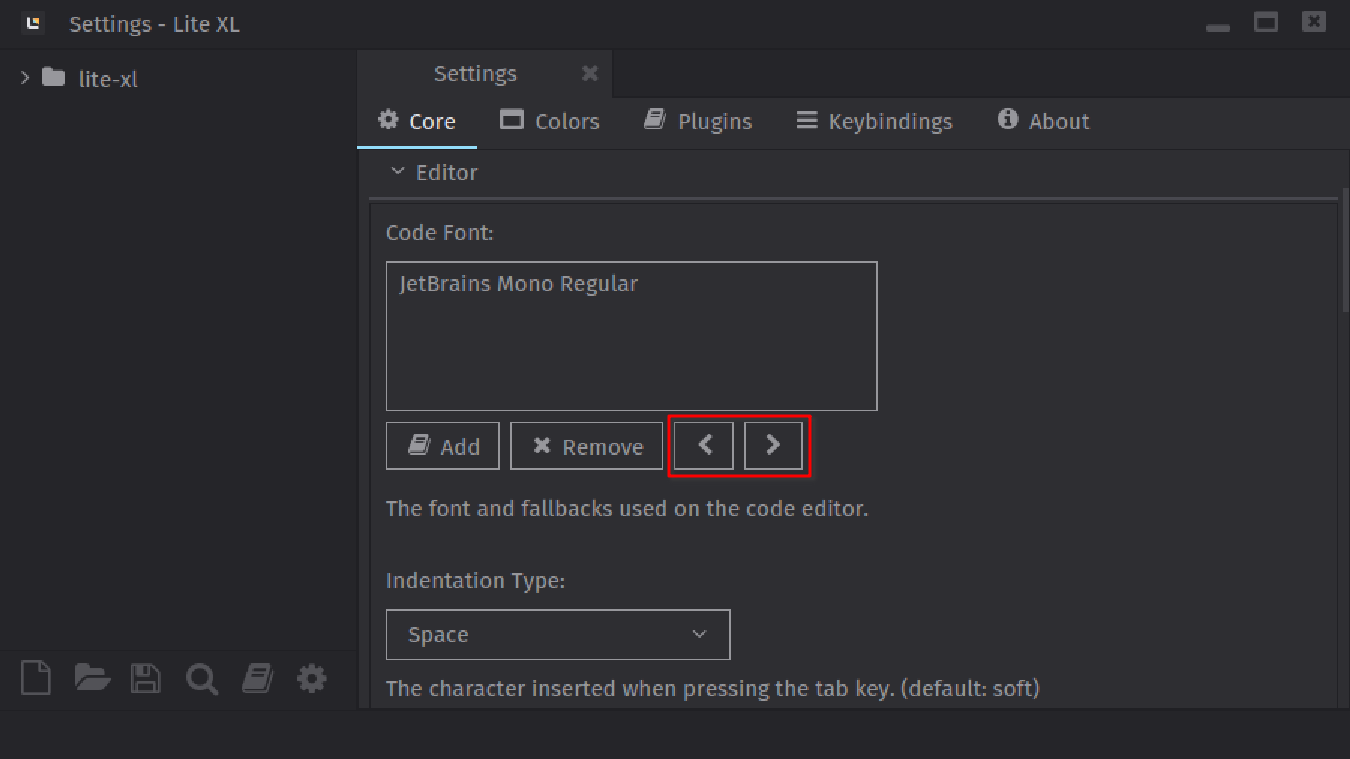
Since Lite XL v2.1.0, we started bundling the settings plugin. This plugin provides a GUI to configure Lite XL.
Warning
You mustn’t set the same configuration option in the user module and the Settings GUI at the same time. This can result in undefined behavior.
Fonts
Lite XL comes with JetBrains Mono and Fira Sans by default. JetBrains Mono is used for the editor itself while Fira Sans is used for other UI elements.
To change the fonts used by the editor, you can change the
variable style.font and style.code_font.
These variables are responsible for the UI font and code
font respectively.
To load a font, you can use renderer.font.load().
This function allows you to load a font file as long as
it is supported by FreeType.
The function takes in the path to the font file and
the pixel size of the font.
When displaying text with multiple languages, multiple
fonts are often required.
Lite XL supports fallback fonts by using the function
renderer.font.group().
This function takes in a table of fonts loaded by
renderer.font.load().
Lite XL will attempt to render fonts based on the order
the fonts are added to the table.
For this example, we’ll load Noto Sans Mono, which is
located in /usr/share/fonts/noto/NotoSansMono-Regular.ttf
and set it as our code font.
local style = require "core.style"
-- SCALE is the pixel scaling required for the current DPI setup.
-- This converts the font size from points to pixels.
style.code_font = renderer.font.load("/usr/share/fonts/noto/NotoSansMono-Regular.ttf", 15 * SCALE)
Next, we’ll also load Noto Sans SC, which is located
in /usr/share/fonts/noto-cjk/NotoSansCJK-Regular.ttc and use
it as fallback.
local style = require "core.style"
-- do not ever do style.code_font = { style.code_font, ... }
-- style.code_font can be a font group and lite-xl does not
-- support nested font groups!
style.code_font = renderer.font.group {
  renderer.font.load("/usr/share/fonts/noto/NotoSansMono-Regular.ttf", 15 * SCALE),
  renderer.font.load("/usr/share/fonts/noto-cjk/NotoSansCJK-Regular.ttc", 15 * SCALE)
}
Tip
Lite XL does not support using a specfific face in a TrueType collection (.ttc) file. Only the first face can be used.
Keyboard shortcuts
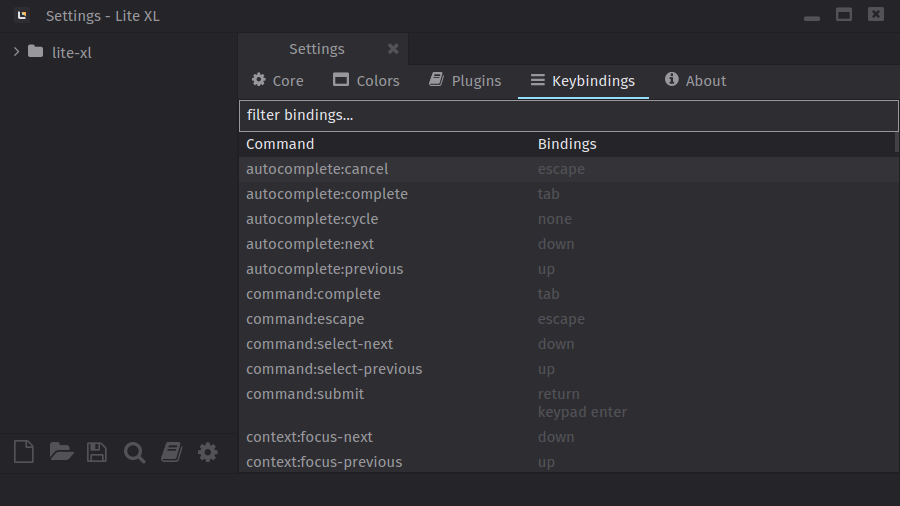
Keyboard shortcuts are managed by the core.keymap module.
This module maps keyboard shortcuts to one or more commands,
where each command has a predicate that determine whether it can be run.
For a list of default keyboard shortcuts, check out these pages:
Adding a keyboard shortcut
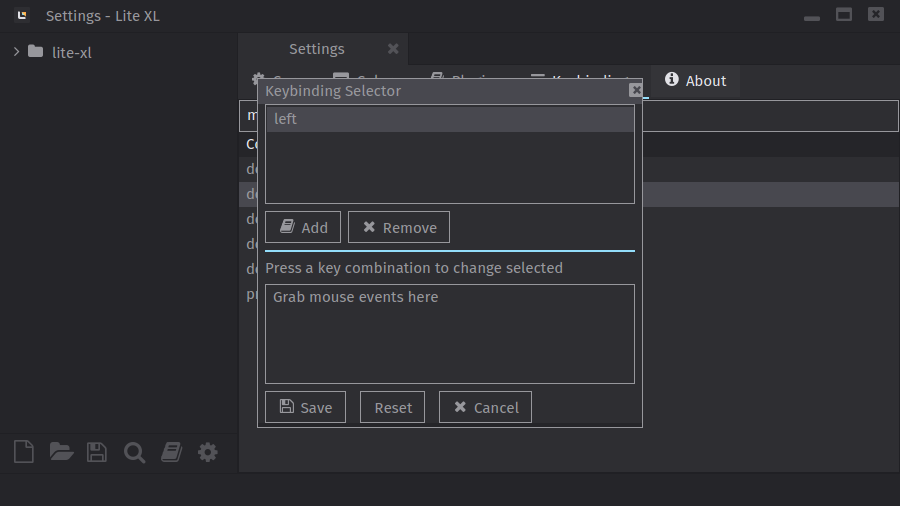
To add keyboard shortcuts, you can use keymap.add().
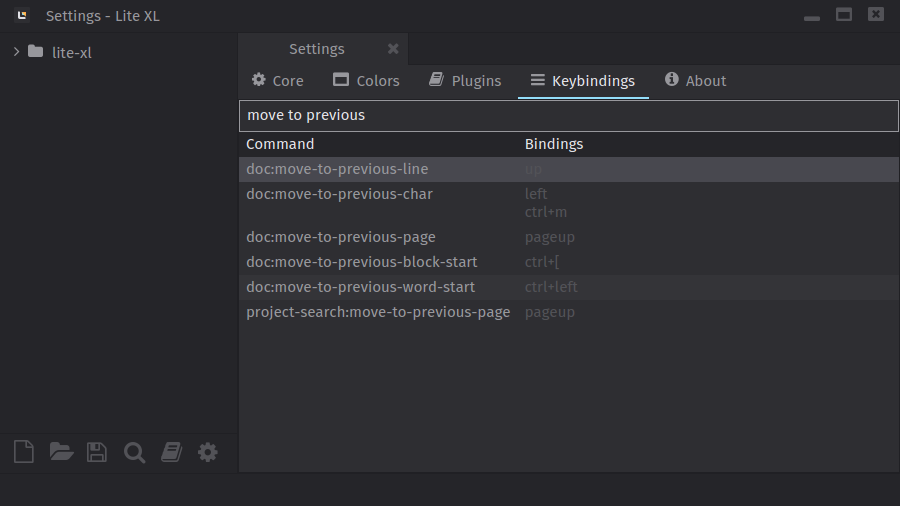
For example, to bind Ctrl+M to move the cursor backwards and then upwards, do:
local keymap = require "core.keymap"
keymap.add {
  ["ctrl+m"] = "doc:move-to-previous-char"
}
keymap.add {
  ["ctrl+m"] = "doc:move-to-previous-line"
}
Lite XL will automatically execute both commands in the order that they’re added.
Alternatively, to override a keyboard shortcut completely,
add true on the second parameter of keybind.add().
local keymap = require "core.keymap"
keymap.add {
  ["ctrl+m"] = "doc:move-to-previous-char"
}
keymap.add({
  ["ctrl+m"] = "doc:move-to-previous-line"
}, true)
This will cause Lite XL to only run core:move-to-previous-line when Ctrl+M is pressed.
Removing a keyboard shortcut
To remove an existing keyboard shortcut, you can use keymap.unbind().
In this example, we will unbind Ctrl+M.
local keymap = require "core.keymap"
keymap.unbind("ctrl+m", "doc:move-to-previous-line")
keymap.unbind("ctrl+m", "doc:move-to-previous-char")
This will unbind the two commands from Ctrl+M.
Alternatively, to unbind all commands from Ctrl+M,
you can omit the second parameter to keymap.unbind().
local keymap = require "core.keymap"
keymap.unbind "ctrl+m"
keymap.unbind "ctrl+m"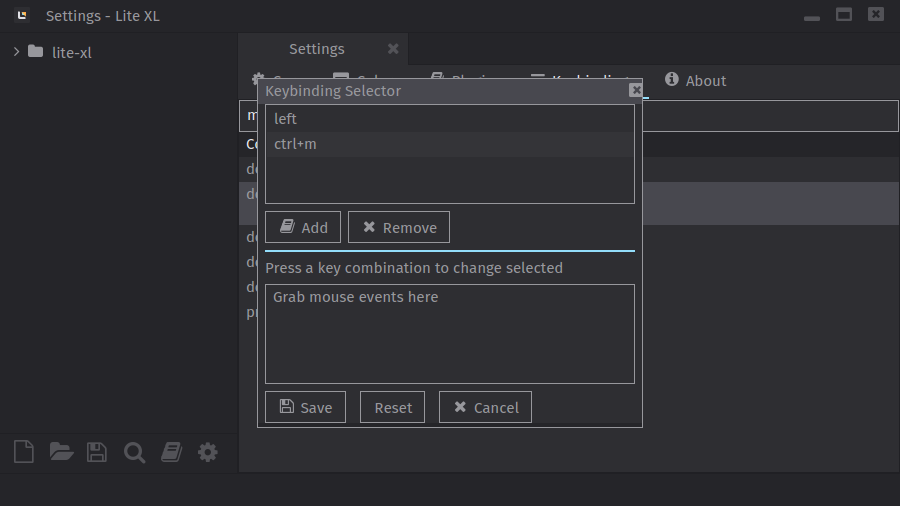
Tip
On X11, Lite XL interprets keypresses based on their physical location,
regardless of the keyboard layout set in your DE settings.
Tools such as xmodmap will therefore have no effect; instead you’ll have to modify your keymap
in Lite XL directly.
For example, to remap Caps Lock to Ctrl, add this to your user module:
local modkeys = require("core.modkeys-" .. (PLATFORM == "Mac OS X" and "macos" or "generic"))
modkeys.map["capslock"] = "ctrl" -- this maps capslock to ctrl
table.insert(modkeys.keys, "capslock") -- this enables capslock as modifier
modkeys.map["left ctrl"] = "capslock" -- this maps left ctrl to capslock
Themes
The default theme is a dark theme. Themes are implemented as plugins that changes the styling variables of Lite XL.
This can be changed with core.reload_module() and loading the appropriate theme file.
To load the theme summer, add core.reload_module "colors.summer".
core.reload_module "colors.summer"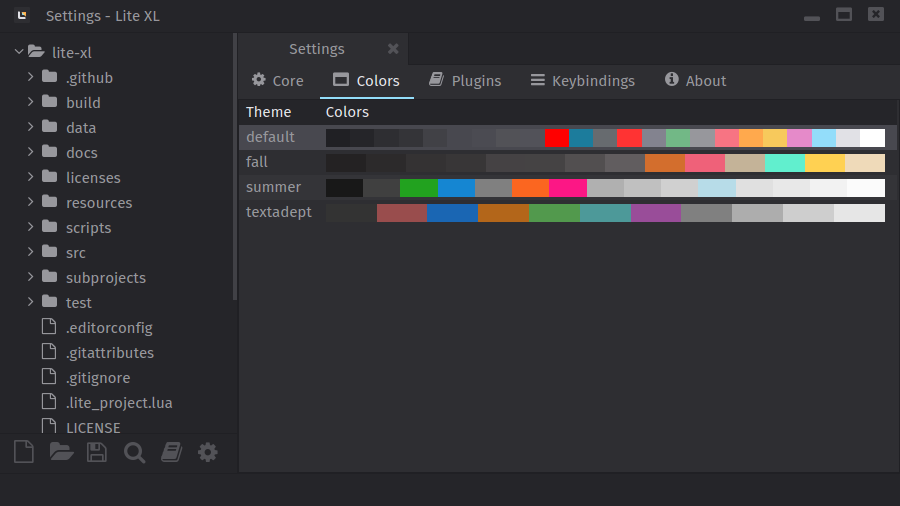
Other options
There are a lot of configuration options that can be modified.
A list of these options can be found in data/core/config.lua,
but we’ll list a few common ones here.
Indentation
To change the indentation size and type, set config.indent_size
and config.tab_type respectively.
local config = require "core.config"
config.indent_size = 4 -- set indentation to 4
config.tab_type =      -- "soft" for spaces, "hard" for tabs
Window decoration
If you’re on platforms such as Wayland where window decoration may be client drawn,
you can set config.borderless to true.
This will let Lite XL draw its own window decoration.
local config = require "core.config"
-- enable custom window borders
config.borderless = true
Project files limit
When opening large directories, Lite XL will often complain about reaching the project file limit. This is because Lite XL becomes slower when it needs to index these files on startup.
If your filesystem has good performance, you can increase this limit
by setting config.max_project_files to something else.
The default value is 2000.
local config = require "core.config"
-- set max project files to 5000
config.max_project_files = 5000
Ignoring files
Lite XL does not index certain files and directories by default, such as
version control and executables.
This can be modified by changing config.ignore_files.
This value is a table of Lua patterns.
For directories, the pattern ends with a forward slash (/).
For files, the pattern ends with the end anchor ($).
local config = require "core.config"
-- ignore .data/
table.insert(config.ignore_files, "^%.data/")
Caret
You can disable or change the blinking rate of the caret.
local config = require "core.config"
config.disable_blink = true -- disable caret blinking
config.blink_period = 0.4 -- change caret blink rate
FPS (Frame rate)
The default frame rate is set to 60.
If this causes an issue, you can set it via config.fps.
local config = require "core.config"
-- set FPS to 30
config.fps = 30
Transitions
You can disable any animations/transitions by setting config.transitions to false.
To disable individual transitions, you can set any member of
config.disabled_transitions to true.
local config = require "core.config"
-- disable all transitions
config.transitions = false
-- disable commandview and scroll transitions
config.disabled_transitions = {
  commandview = true,
  scroll = true
}
To change the animation rate, set config.animation_rate.
local config = require "core.config"
-- slow down the animations to half speed
config.animation_rate = 0.5
Other options
| Options | Description |
|---|---|
max_log_items | Maximum number of log items to store before discarding them. |
message_timeout | Time (seconds) to show each message on the StatusView. |
mouse_wheel_scroll | Number of pixels per “scroll”. |
animate_drag_scroll | Enable smooth scrolling. |
force_scrollbar_status | Always expand ("expanded") or hide ("contracted") the scrollbar. |
file_size_limit | File size limit (MB) before Lite XL refuses to load it. |
symbol_pattern | Lua pattern used by Lite XL to find symbols. |
non_word_chars | A pattern used to find non-word characters. |
undo_merge_timeout | Time (seconds) before Lite XL merges edits to form a single undo step. |
max_undos | Number of undo to store per document. |
max_tabs | Number of tabs to show before overflowing. |
always_show_tabs | If true, always show tabs even if only one file is open. |
highlight_current_line | Highlights the current line. |
line_height | The spacing between each line. |
keep_newline_whitespace | If true, removes any line that only contains whitespace (space, tabs, etc.) |
line_limit | An advisory limit for characters per line. |
tab_close_button | Shows or hides the tab close button for each tab. |
max_clicks | Maximum number of clicks you can perform in the editor. |
Plugins
Since the user and project module loads before any plugins, you can configure
or disable any plugins in the user and project modules.
Plugins obtain their configuration from a table in the config.plugins table.
You can add code to user module that modifies the table.
To disable a plugin, you need to set the associated config.plugins entry to false.
This tells Lite XL to not load the plugin on startup.
It will not load nor unload the plugin from the current instance.
This allows the plugins to be loaded and toggled without a restart.
In this example, we’ll enable the drawwhitespace plugin
and set it to only draw whitespaces in the selected text.
local config = require "core.config"
config.plugins.drawwhitespace = {
  show_selected_only = true
}
To disable the plugin, simply assign config.plugins.drawwhitespace to false.
local config = require "core.config"
config.plugins.drawwhitespace = false